Improved Drag and Drop
Overview
A few versions ago Rhapsody introduced some enhancements to the drag and drop functionality in Rhapsody. These went largely unannounced so you may not be aware of these time-saving improvements.
Ordinarily when you drag elements in the browser Rhapsody will move them (or copy them if you hold down the Ctrl key). But thats not true for everything, there are some key drag operations that can trigger different behavior. For example:
Interfaces
- Try dragging an Interface Block onto a Proxy Port. Rhapsody gives you the option of using that Interface Block as the contract for the proxy port.
- It also works with Flow Ports and Flow Specifications.
- It also works with standard ports and interfaces (well sort of) - it adds the interface as a provided interface and sets the contract to that interface - which in my mind is undesirable and there is no way to choose required so this is much less useful.
The drag operation isnt confined to the browser - if you drag an interface from the browser onto a port on a diagram - it works there too - very convenient !
Here are the other sources and targets on which you can use the improved drag and drop:
Requirement -> Any model element: Add a basic dependency from the element to the Requirement(s) - yep it works with multiple selected Requirements too !
Stereotype -> Any Element: Applies the stereotype tp the element
Class / Block / Actor > Object Part: Sets the type of the Object / Part
Class / Type -> Operation / Function: Sets the return type for the Operation / Function
Event / Triggered Operation -> State Transition: Sets the trigger for the transition
Event -> Interface : Adds an event reception to the interface
Type -> Attribute : Sets the type of the attribute
Remote Artifacts
If you drag a remote artifact onto another model element then you can quickly create OSLC links. For example dragging remote requirement(s) brings up the Add OSLC link dialog:

Confirmations
Thre will always be a confirmation, for example:
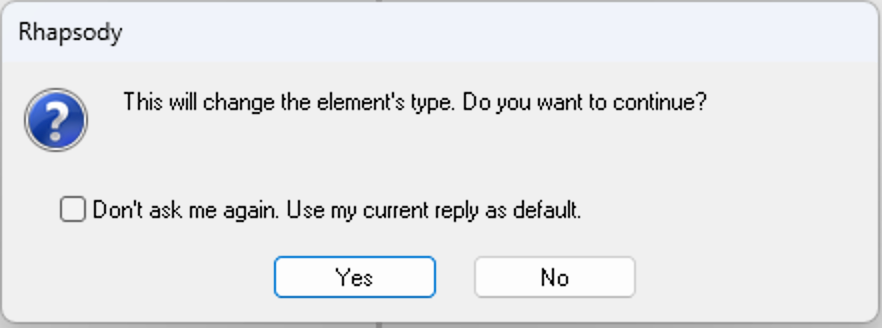
If you do select don't ask again and want to reverse that decision - you will find it in the rhapsody.ini file under OneTimeMessageReplies:

Delete the relevant entry to get the question dialog back (you don't need to restart Rhapsody or reload the project)